
Open the Android release page
This guide does not mirror or re-sign an APK. Open the upstream release page, compare the tag and asset, and only then install the package on your Android TV or Fire TV device.
The short answer: Android TV uses the Android route, with TV-specific checks
For a compatible Android TV device, start with the official Better xCloud Android release rather than a mystery TV installer. Keep the package, release history and source visible before opening a file. Then check remote navigation, system-level controller pairing and smooth stream decoding.
It covers source verification, sideloading context, first launch, remote and controller checks, Fire TV boundaries and common stream problems. It does not promise that every TV model, APK mirror or cloud-gaming session is compatible.
Check the official Android source and version before installing
The Android release page shows repository context, release tag and published assets together. On September 15, 2026, it displayed v0.24.2 / a0.24.2 for Android. Treat that as a dated observation, not a permanent latest-version promise; reopen it before installing or updating. Avoid guessed URLs, countdown mirrors and packages without release context, and remember that the PC userscript has a separate version line.
| What you are checking | Expected TV path | Stop if |
|---|---|---|
| Project source | Official Better xCloud Android repository | The page hides its repository or owner |
| Package type | Android APK for the device | The download is a PC userscript or unknown bundle |
| Release identity | Tag, asset name and notes agree | The tag, filename or package details conflict |
| Install destination | Android TV or compatible Fire TV device | The device architecture or Android version is unsupported |
Prepare the TV, network and input devices
Before sideloading, confirm free storage, a stable connection and a visible way to open an APK. Use the remote for menus, but pair a Bluetooth or USB controller in Android settings for gameplay. Record the TV resolution, network path, Android version, device model and a normal Xbox Cloud Gaming baseline before changing stream options.
Better xCloud Android TV installation: follow the sideload steps
Android TV installations often involve sideloading because the official Android release path may be a repository asset rather than a TV storefront listing. The exact file-transfer method depends on your device. The important part is to keep the source, filename and package visible while moving the file, and to avoid mixing an APK from an unrelated mirror into the process.
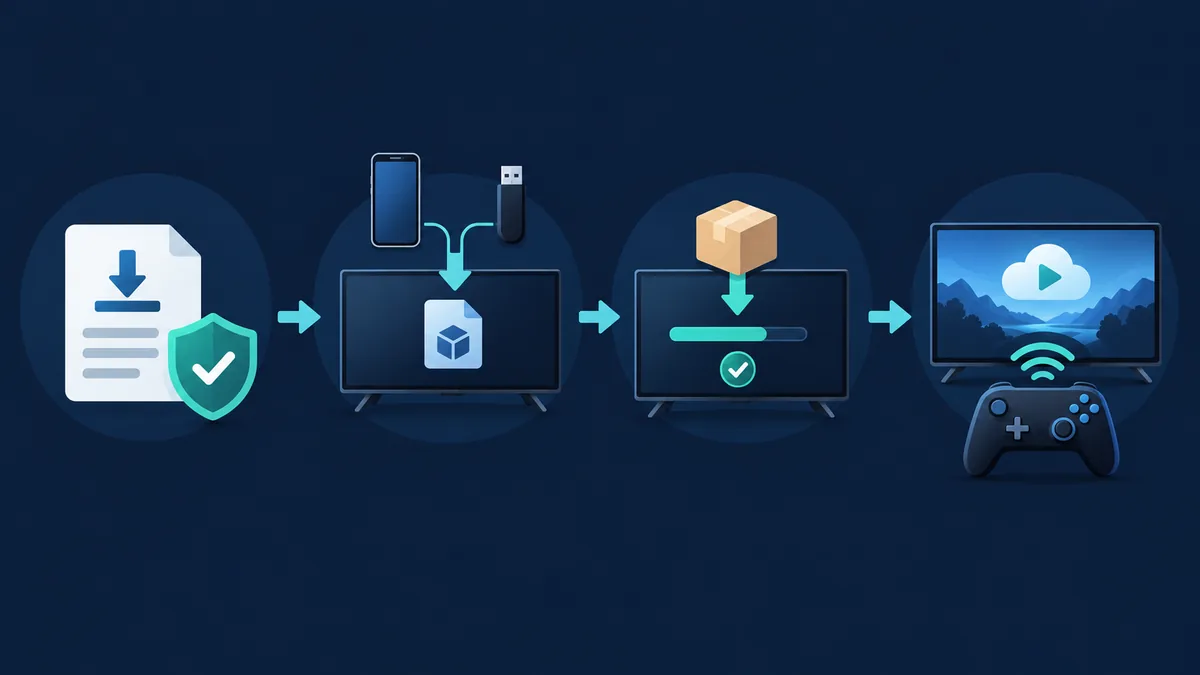
Open the upstream release
Use the official Android repository or release page. Confirm the tag, asset name and package type before downloading or transferring anything.
Move the package safely
Download on the TV or transfer through a trusted local method. Keep the original filename and do not unpack or re-sign the APK.
Allow the install permission
If Android asks the file manager or browser to install unknown apps, enable the permission only for that app and review it again after installation.
Install and launch
Open the APK, read the package prompt, finish the install and launch Better xCloud from the TV app list. A PC userscript menu will not appear in the TV launcher.
Pair input and test
Pair one controller, sign in through the normal Xbox Cloud Gaming flow and run one game with default settings before tuning quality.
Finish the first launch before changing stream settings
The first successful session is a baseline, not a performance contest. Check the app, sign-in flow, TV picture and in-game controller response. If the picture is unstable, return to the default profile; then change one setting at a time and note stutter, input delay, image quality and network behavior.
- Record the device model, Android version and installed app tag.
- Test remote navigation separately from in-game controller input.
- Keep Microsoft sign-in inside the normal Xbox Cloud Gaming flow.
- Change one stream setting at a time and keep the working baseline.
- If the result is unclear, compare another supported display or network path before blaming the app.
Android TV troubleshooting: separate app, input and stream problems
When Better xCloud is not working on a TV, start with the symptom. A missing launcher icon suggests installation or visibility; a remote that cannot move through menus suggests focus; a controller that works in Android settings but not in a game suggests the session; black screens, buffering and frame drops may involve network, display mode or decoder. Use the exact message and last change as evidence, revert that change first and check the release source before replacing a conflicting APK.
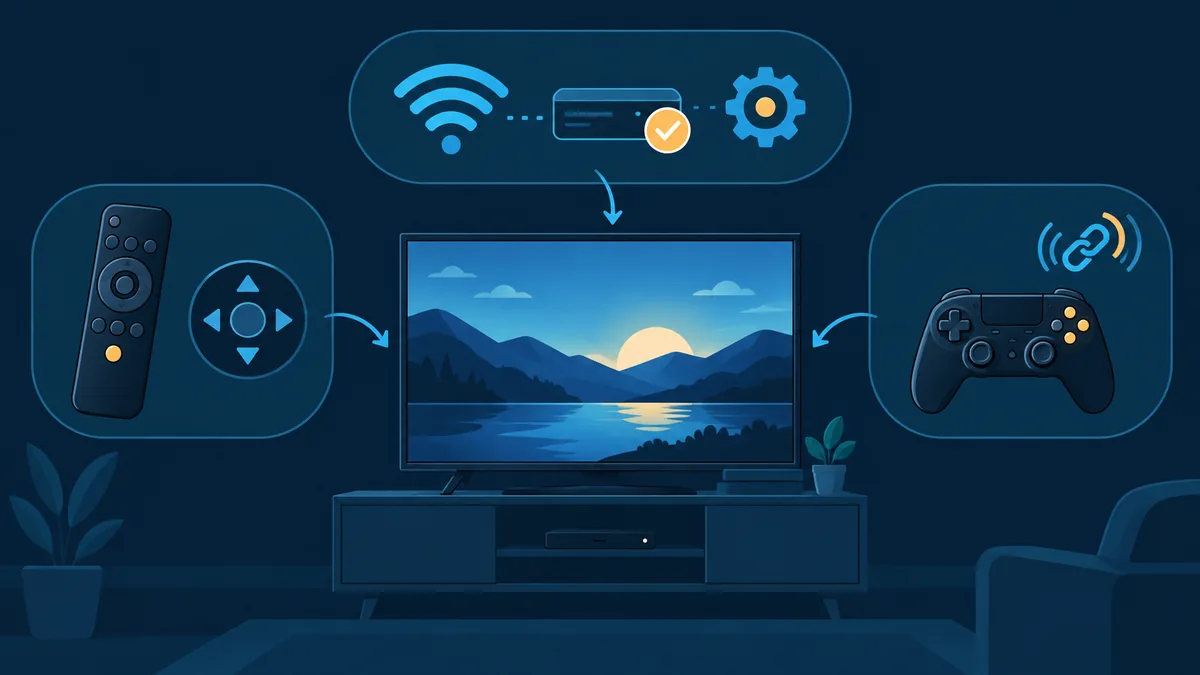
What changes on Fire TV and other sideloaded devices
Fire TV and Android TV can look similar, but their launchers, permissions, input behavior and package details differ. Treat Fire TV as a device-specific Android variation, not proof that every Android TV instruction transfers unchanged. Check the official release context, pair a supported controller and record Fire OS version, device model and error before seeking another build.
This page does not claim universal Samsung TV, LG webOS or Smart TV support. Those platforms need their own verified installation paths and should not be silently grouped under Android TV.
- Use the package path documented by the official Android project.
- Keep the file source and release tag available during transfer.
- Use a controller for gameplay instead of treating a TV remote as a full replacement.
- Record Fire OS or Android TV version details before reporting a failure.
Update or remove the Android TV app safely
Before updating, reopen the official release page and compare the new tag, package name and notes with the installed version. A signature or package conflict may indicate a different source, signing identity or damaged file, so resolve the source question instead of forcing an unknown replacement. After reinstalling, repeat the baseline test with default stream, normal sign-in, one controller and one game.
Record the installed state
Save the app tag, device model, system version and any exact installer or stream message.
Compare the upstream release
Check the official repository, release notes, package name and asset before opening an update.
Retest the baseline
Launch with default settings and one controller before restoring custom quality or input choices.
Choose the next guide after the TV setup works
Android TV questions often cross platform boundaries. Use the Android guide for general APK checks, the controller guide for pairing and detection, the settings guide for quality trade-offs and the troubleshooting guide for errors that remain after the baseline test. If you are still choosing a device, return to the installation overview so the Android, PC, iOS and TV routes stay separate.
Open the Better xCloud controller guideBetter xCloud Android TV FAQ
Can I install Better xCloud on Android TV?
Yes, on compatible hardware through the official Android app route; verify architecture, Android version, controller support and decoding, then test a default session.
Is there a separate Better xCloud Android TV APK?
Do not assume one exists. Use the official Android repository and release notes, and match the published package to the device instead of using a TV mirror.
How do I install the APK on Android TV?
Open the official release page, transfer the package through a trusted method, allow the needed unknown-app permission, install it and pair a controller at system level.
Can I use a TV remote to play Better xCloud?
Use the remote for navigation, but a supported Bluetooth or USB controller is usually better for gameplay; pair and test it in Android settings first.
Why does Better xCloud work on my phone but not my TV?
TV hardware can differ in architecture, Android version, launcher, display mode and decoder; compare details, restore default streaming and isolate each symptom.
Does Better xCloud support Fire TV?
Treat Fire TV as device-specific Android support; check the official package path, Fire OS version, model and controller behavior before claiming compatibility.
What should I do if the Android TV stream is black or stutters?
Record the symptom, restore default quality, test display and network, then change one resolution, bitrate or decoder option at a time.
How do I update Better xCloud on Android TV safely?
Compare the official tag, package name and notes with the installed version, stop on signature conflicts and test the default stream after updating.